









After payment succeeds, log in and use “My Subscriptions” to check the delivery status. Once the subscription is activated, view and copy the login details actually shown on the subscription card.
Start with these steps
- Confirm that payment succeeded
- Log in and open “My Subscriptions”
- Check the delivery status
- Wait until it shows “Activated,” then view your login details
- Start using the service according to the subscription details and the Notes
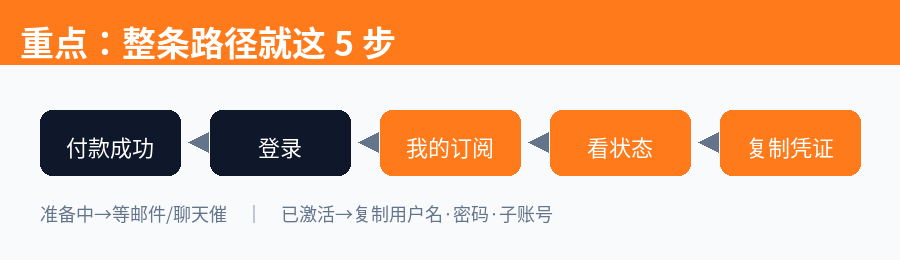
The image above is a walkthrough of checking your subscription after payment.
Open “My Subscriptions”
Click your profile picture in the top-right corner to open:
- Orders: Confirm whether payment succeeded
- My Subscriptions: Check the delivery status and view your login details
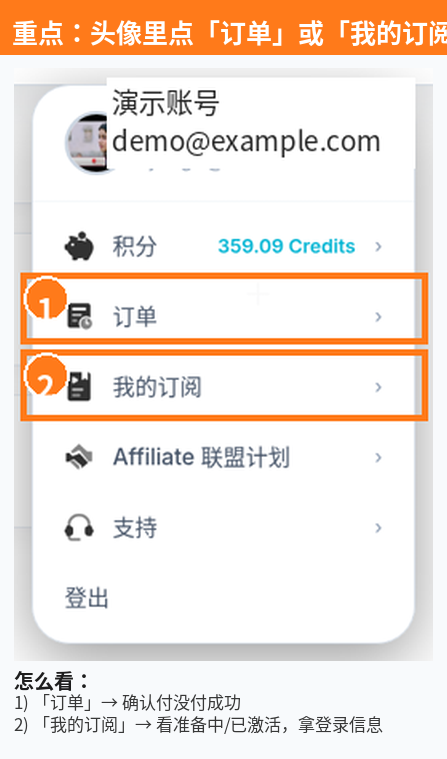
The image above is an example of the profile-menu entries.
You can also select “View subscription” on the order. Click only that option.
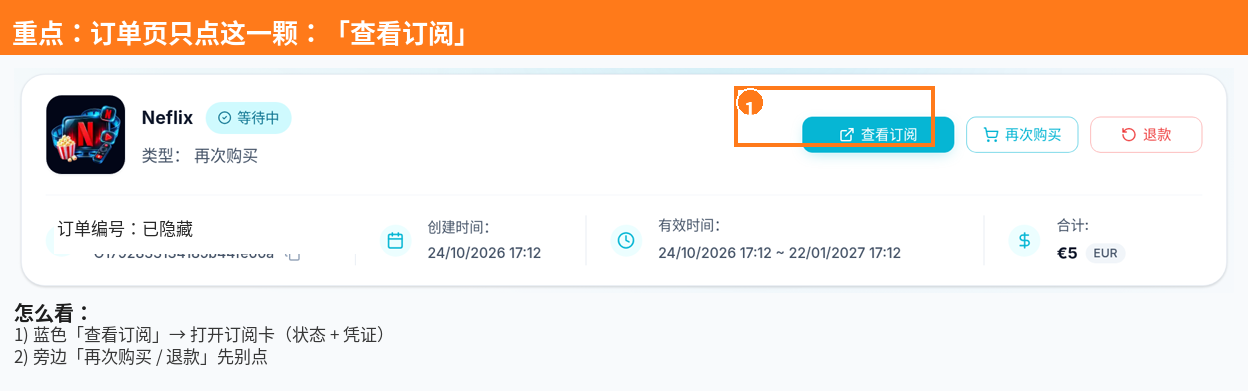
The image above is an example of “View subscription” on the orders page.
On the orders page, select “View subscription” first. Don’t click “Refund” next to it until you’ve confirmed the status.
If it still says “Preparing”
This means delivery isn’t complete yet. You’ll usually get an email when it’s ready.
If you’ve already waited a long time, or the page shows a timeout and it still isn’t complete, select “Live chat” on the card.
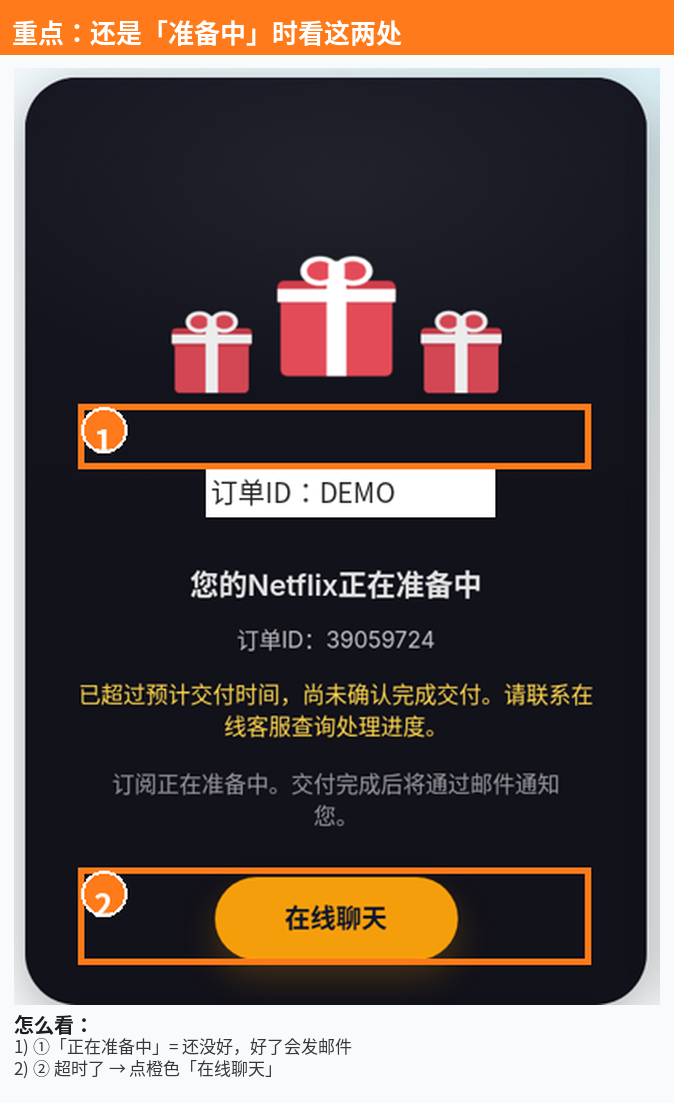
The image above is an example of the “Preparing” status.
When it shows “Activated”
This means delivery is complete, and you can view your login details and start using the service.
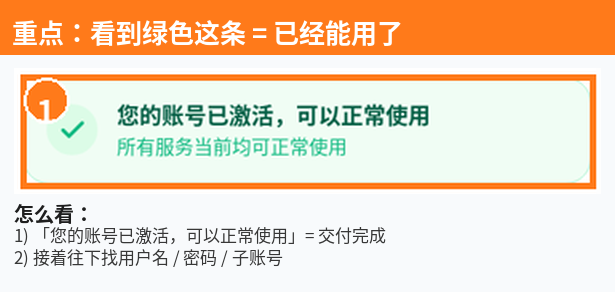
The image above is an example of the “Activated” status.
Find your login details on the subscription card
Scroll down on the same subscription card. You’ll commonly see a username and password; some orders also show a sub-account or profile note. Go by what the card actually displays:
- Username: You can copy it directly
- Password: Select “Show password” first, then copy it
- Sub-account: If there is a note in red or a number (for example, NO.1), choose the matching profile as instructed
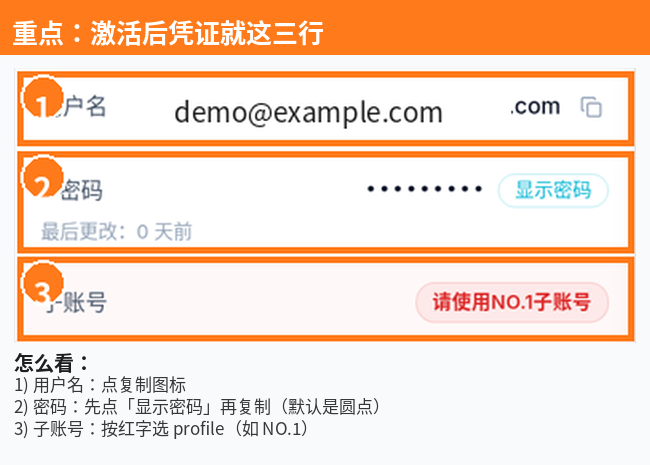
The image above is an example of the login details on the subscription card.
Different products may come with a shared account, a family-group invitation, or a top-up to your own account. Go by the plan details on the product page and your subscription card.
Please note when you start using it
- You can be logged in on up to 1 device at a time, and some product pages also say “one device only.” See Device and Usage Limits.
- Follow the “Notes” on the subscription card. Don’t use third-party tutorials for bypassing the rules.
- If you’re told you aren’t a member, use “Report an issue” on the subscription card, or open a Support ticket from “Support” in the profile menu.
- Support is 7×24, with a 12-hour response time. You can also email support@subrya.com.