











If you purchased on SubRya and turned on auto-renewal, manage renewal on your SubRya account or subscription page. That is not the same path as canceling a membership in the official app.
What the product page says about auto-renewal
You’ll often see a note like this below the plan:
“Automatic renewal. Cancel anytime. We’ll renew your subscription 5 days before it expires, according to the automatic billing period you selected. We’ll email you the payment result.”
The setting is off by default. Renewal under the terms above only happens if you turn it on yourself.
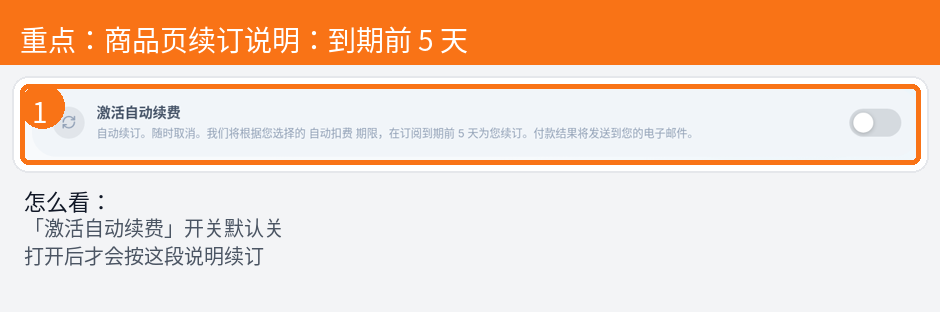
The image above is an example of the auto-renewal note on the product page.
The reminder email in the terms
Terms and Conditions section 18.2 states that a reminder email is sent three (3) days before renewal. It usually includes the billing date, amount, and service, along with cancellation instructions.
You can also log in to your account at any time and manage or cancel your subscription from the account page.
The product page says renewal happens “5 days before expiration,” and the terms mention an email “3 days before renewal.” Both wordings appear on the site; go by the current wording shown there.
How to open “My Subscriptions”
- Log in with the account you used to purchase
- Click your profile picture in the top-right corner
- Open “My Subscriptions,” or use the subscriptions entry on the account page
You usually can’t see a cancellation option while you’re logged out.
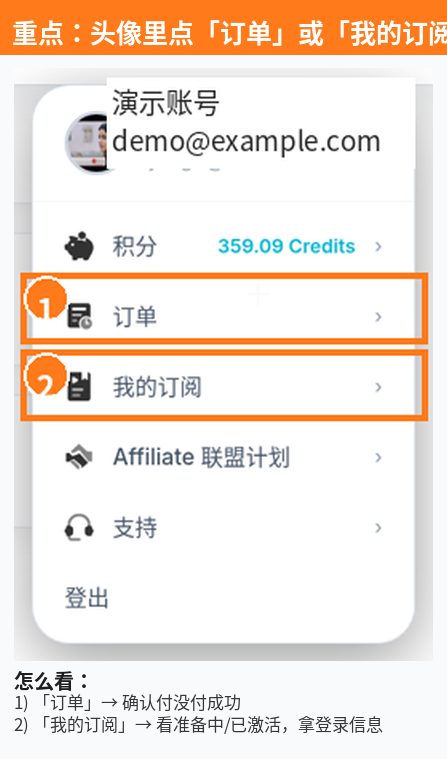
The image above is an example of opening “My Subscriptions.”
If the page has no “Turn off auto-renewal” button
An activated subscription card usually shows the status and a green “Renew” button. “Renew” here means buying again or extending the period. It is not the same as “Turn off auto-renewal” or “Cancel renewal.”
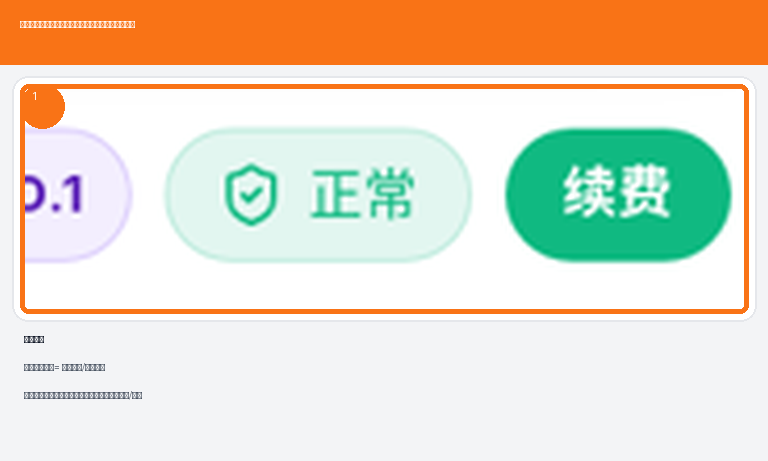
The image above is an example of the card status and “Renew.” Don’t treat “Renew” as turning off auto-renewal.
If the page has no button to turn off auto-renewal or cancel renewal, you can use one of these options instead:
- Open “Support” from the profile menu, or follow the cancellation instructions in your email
- Email support@subrya.com
- Follow the terms that say to log in and manage or cancel from the account page. If a turn-off button later appears on the page, go by the instructions shown there at that time
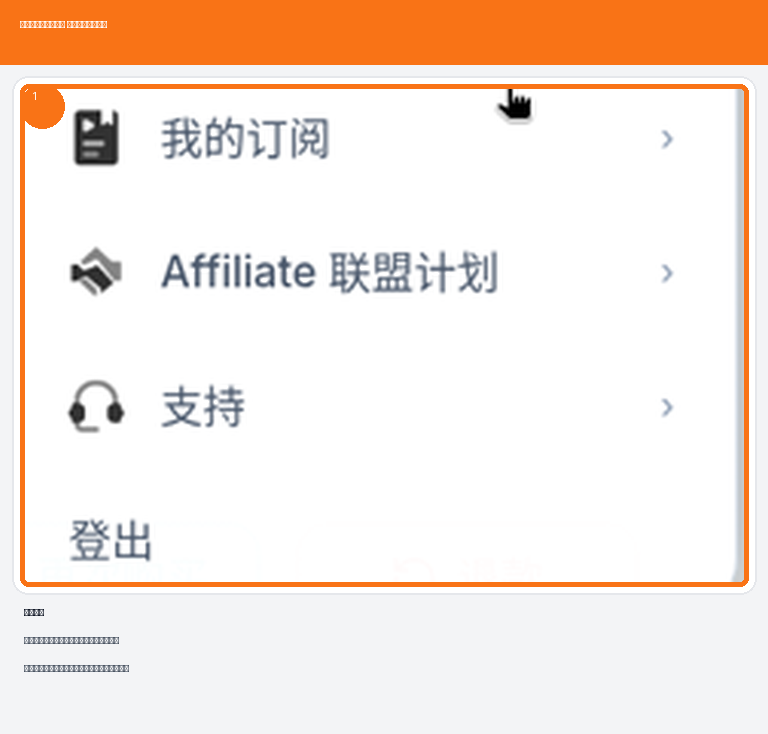
The image above is an example of the Support entry.
Whether you can keep using the service for the rest of the current period after turning auto-renewal off depends on your account status and what support tells you.
Canceling on SubRya is not the same as canceling on the official platform
- If you paid on SubRya and turned on auto-renewal: turn it off on your SubRya account or subscription page, and watch for emails from SubRya.
- If you started the membership yourself on the official platform: cancel it in the corresponding official account. SubRya can’t stop official-platform billing.
- If the order was purchased through SubRya, but you click “Cancel” on the official platform: that usually won’t stop charges from SubRya. You still need to come back to SubRya to handle it.
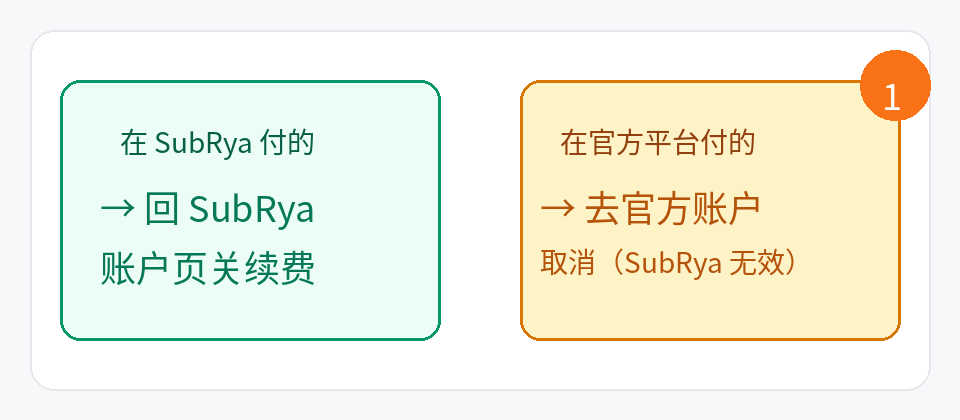
The image above is to help you tell where you paid and where you should turn off renewal.
Clicking “Cancel” on the official platform usually won’t stop charges from SubRya. Auto-renewal that you purchased and turned on at SubRya needs to be handled back on SubRya.
If you have a billing dispute
If you turned auto-renewal off before the renewal and were still charged, or you were charged more than once, gather your order number, related emails, and billing screenshots, then email support@subrya.com, use live chat, or submit a Support ticket.
For refund eligibility, see the Refund Policy and Issues, Failures & Refunds. We don’t promise a full refund for every renewal dispute. Support is 7×24, with a 12-hour response time.