










A Netflix sign-in code is a one-time 4-digit code Netflix sends to the email address or phone number linked to the account. It’s only for signing in to Netflix; it isn’t the password in your subscription details, a profile PIN, or a Subrya website sign-in code.
Before you start
First, make sure you know the difference between these so you don’t look in the wrong place:
Name: Password in your subscription details.Purpose: Sign in to your Netflix account. Where to find it:My Subscriptions shows the actual password.
Name: Netflix sign-in code.Purpose: One-time sign-in verification; expires in about 15 minutes. Where it comes from: Netflix sends it to the email address or phone number linked to the account.
Name: Profile PIN.Purpose: Open a locked profile. Where to find it: It’s specific to that profile and can’t be used to sign in.
Name: Subrya “Sign in with verification code.”Purpose: Sign in to your Subrya website account. Where it comes from: The Subrya sign-in page; it has nothing to do with Netflix.
To find your username and password, see Where to find your Netflix username and password on Subrya.
1. Where Netflix sign-in codes are sent
When you select “Use a sign-in code” or “Send a sign-in code” on the Netflix sign-in page, Netflix sends the 4-digit code to the email address or phone number already linked to that Netflix account. According to Netflix, most codes arrive within about 2 minutes and expire after 15 minutes.
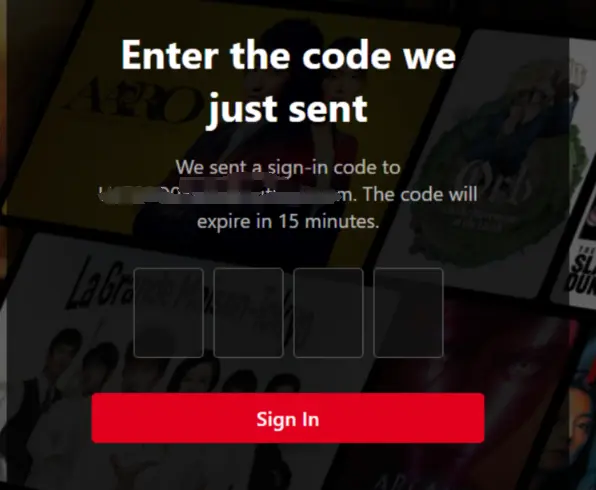 Example of Netflix’s official sign-in code page (email address obscured). The code is sent to the email address linked to that Netflix account, not your Subrya sign-in email.
With a shared order, you usually can’t see the account owner’s email address, so you may not receive this email. That doesn’t mean the password in your subscription details is invalid. Don’t confuse a Netflix sign-in code with your subscription password or Subrya sign-in code; follow the instructions from Netflix and the information shown on your subscription page.
2. What to do first if you don’t receive a code
- Open My Subscriptions. If it still says “Your Netflix is being prepared,” wait until delivery is complete before signing in.
- If your subscription is active and your username and password are shown, go to the Netflix sign-in page, select “Get Help,” then select “Use password instead.” According to Netflix, signing in with a password usually requires the account owner’s email address or phone number.
- Don’t keep clicking to send a code. If you make too many requests, Netflix may temporarily stop sending codes or ask you to use a password or try again later.
- If you can’t receive email at the address linked to the account, requesting another code won’t send it to your Subrya email address. Stop and submit a support ticket.
For Netflix’s official troubleshooting steps, see Troubleshoot sign-in or verification codes, links, or one-time passwords. If you keep entering the wrong password, see What to do if Netflix shows a password or technical error.
3. Common issues
- Code is invalid or incorrect: It may have expired, or you may be entering a code from an older email. If you don’t receive the email, contact support instead of trying repeatedly.
- Technical error or prompt to use a password: First, try the password in your subscription details. If that still doesn’t work, wait a few minutes or switch networks and try again. Don’t reset the account password at this point.
- Using a VPN: Turn off your VPN or switch networks, then try again.
- Using a PIN or Subrya verification code as a Netflix sign-in code: A profile PIN can only be used after signing in, to open a locked profile; a Subrya sign-in code can’t be used to sign in to Netflix. If you’ve forgotten your PIN, see What to do if you’ve forgotten your Netflix profile PIN.
When to contact support
If you can’t receive a Netflix sign-in code or still can’t sign in using your password, submit a support ticket; if “Live chat” is available in your subscription details, you can also contact us there. Include your order number, the email address used to place the order and the order date, your plan name, a screenshot of the Netflix prompt, and the steps you’ve already tried. Don’t send your password, sign-in code, or SMS verification code.