











This is a Netflix Household verification issue, not a problem with your Subrya account. The verification is sent to the account owner’s email. Please don’t use unofficial methods. If you see this message on a device not listed on the product page (such as a TV), please switch to a listed device or submit a support ticket.
What does this message mean?
Netflix identifies frequently used networks and devices as a Household. If you sign in at a hotel, a friend’s home, on a new device, or in an environment with a different network from the Household, you may see a message such as “This TV/device isn’t part of your Netflix Household” or “Your device isn’t part of this account’s Netflix Household.”
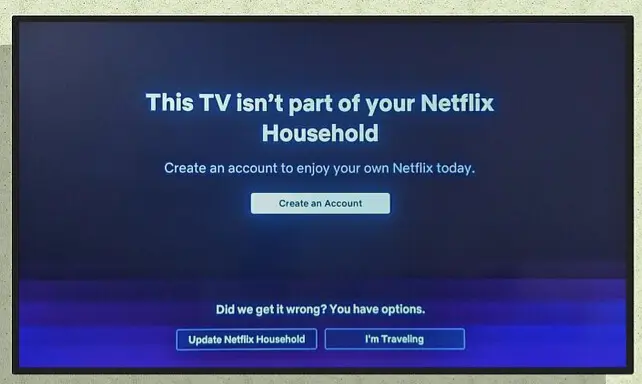 Netflix Household message on a TV (official interface shown for reference). TVs aren’t listed as supported devices on the current product page. If you see this message on a TV, please check the device information on the product page first.
Follow the official options shown on your Netflix screen. For full instructions, see Netflix says your device isn’t part of the Household and What is a Netflix Household?. You can also check Device and usage limits and How many devices can watch Netflix at the same time?.
The current Netflix product page lists Mobile, PC, PS, and Pad as supported devices, but doesn’t list TVs. It also states that each account can be signed in on only 1 device.
1. Check which options actually appear on your screen
Common options include:
- I’m Traveling (commonly shown on TVs)
- Watch Temporarily (commonly shown on phones or computers)
- Update Netflix Household (Update Netflix Household)
- Some devices may also show “Confirm device”.
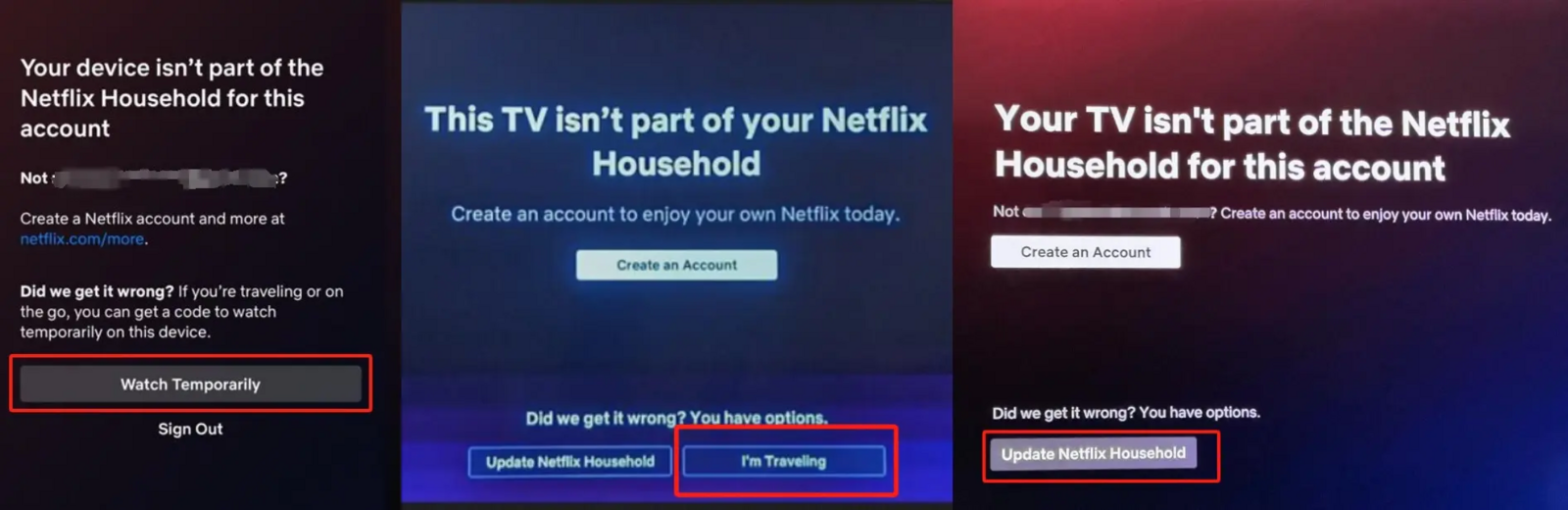 Your screen may show “Watch Temporarily,” “I’m Traveling,” or “Update Netflix Household” (official interface shown for reference).
Only use the official buttons that actually appear on your screen. If an option is greyed out, you’ve reached the limit, or you don’t have access to the email linked to the account, don’t keep clicking.
2. Who receives verification for “I’m Traveling” or “Watch Temporarily”?
With the official process, choosing either of these options requires you to select “Send email.” Netflix will send the temporary access code or link to the account owner’s email (or by text message if no email is linked). According to Netflix, the code expires after about 15 minutes.
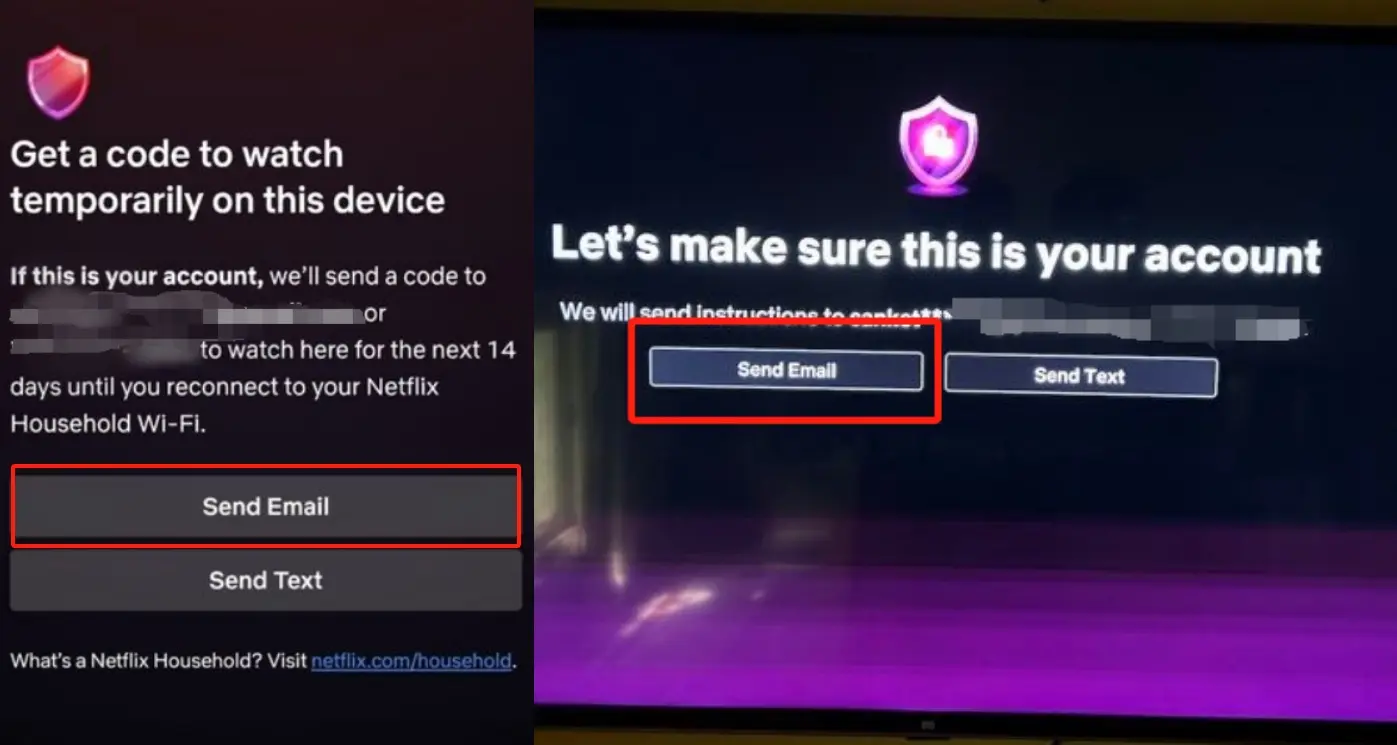 After you select “I’m Traveling” or “Watch Temporarily,” Netflix sends verification to the account owner’s email (official interface shown for reference; the email address in the image is obscured).
With a shared order, you usually can’t receive this email. If you can’t get the code after requesting it, stop trying and submit a support ticket. Netflix also advises against sharing verification codes with anyone outside your Household.
There’s a limit to how many times you can request temporary access. Entering the wrong code repeatedly may also prevent the device from being used for a while.
3. Don’t select “Update Household” without checking first
“Update Household” registers the network your current device is on as the account’s primary Household location. Netflix recommends that the account owner complete this step on a TV at the primary viewing location. Verification is also sent to the account email.
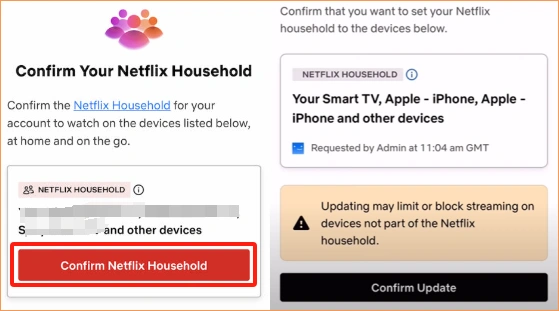 “Update Household” requires confirmation from the account owner. If you have a shared order, don’t update it yourself, as this may affect other users.
If you’re using a shared plan or aren’t sure whether you own the account, don’t update the Household, sign out of all devices, or change the account email or password yourself.
Even if you purchased “one account (Solo),” the Netflix Household must still be updated through Netflix’s official process by someone who can receive verification at the account email. For more information about watching while away from home, see Using Netflix away from home and How to update your Netflix Household.
4. Methods to avoid
- Don’t use unofficial services to receive verification emails, third-party “get verification link” tools, or any method to bypass verification.
- Don’t change the email linked to the account, reset the password, or access someone else’s profile just to pass verification.
- If Netflix prompts you to “Create an account,” that’s an official option for people outside the Household. If you’ve already placed an order with Subrya, submit a support ticket so we can help with your order. Don’t assume you need to buy another official membership to continue.
When to contact support
If you can’t complete verification using the official prompts, or you see this message on a device not listed on the product page, submit a support ticket. Include your order number, order email and time, device type, a full screenshot of the error, and the options you’ve tried. Don’t send your password, verification link, or one-time code.
For issues caused by device or sign-in restrictions, please check Issues, failures, and refunds and Refund policy.