









Netflix interface languages are set separately for each profile. Please change only the profile assigned to you in your subscription details, and leave other people’s profiles unchanged.
Before you begin
First, confirm which profile to use. See Which Netflix profile should I use after signing in?. For Netflix’s official instructions, see How to change the language on Netflix.
The screenshots below show the Spanish interface. The menus are in the same places in the Chinese interface.
1. Change it on the website
Netflix’s recommended steps:
- Open the Netflix Account page in your browser.
- Select “Profiles,” then select your own profile.
- Select “Language,” choose your display language, and save.
You can also select your profile icon in the top-right corner of the signed-in home page, open “Manage Profiles,” then go to the language settings for that profile:
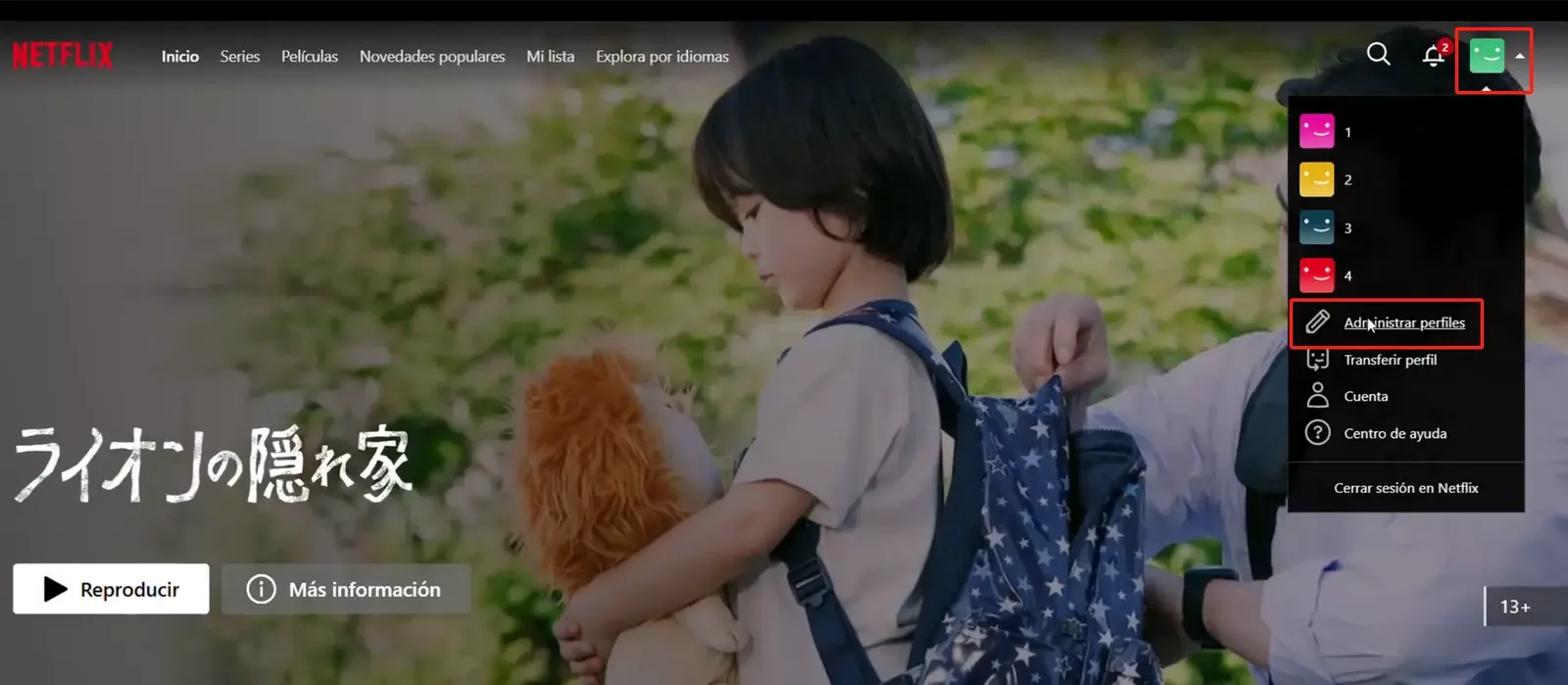 Select “Manage Profiles” from the profile icon menu in the top-right corner of the website. This screenshot shows the Spanish interface; the menu is in the same place.
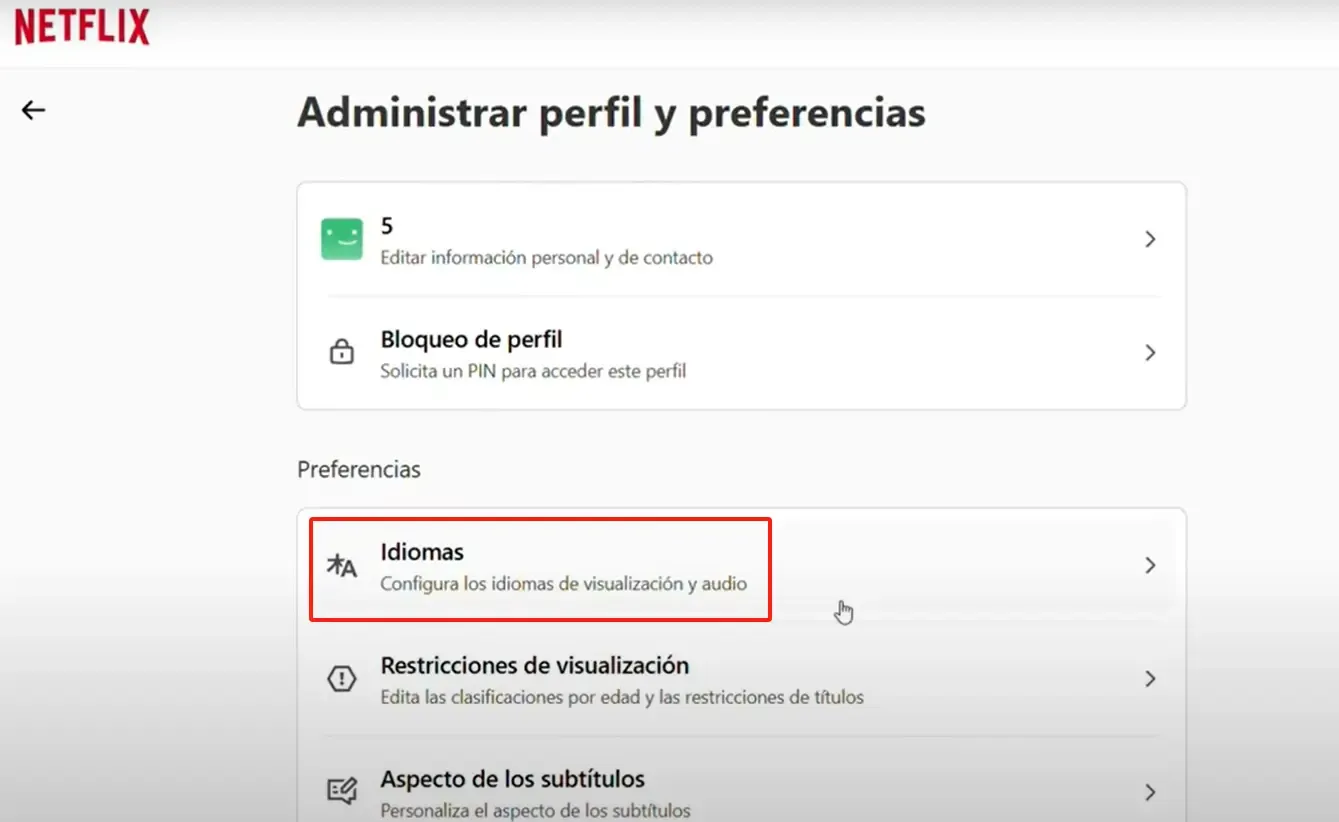 Open “Language” in your profile settings. This screenshot shows the Spanish interface; “Idioma” corresponds to “Language” in Chinese.
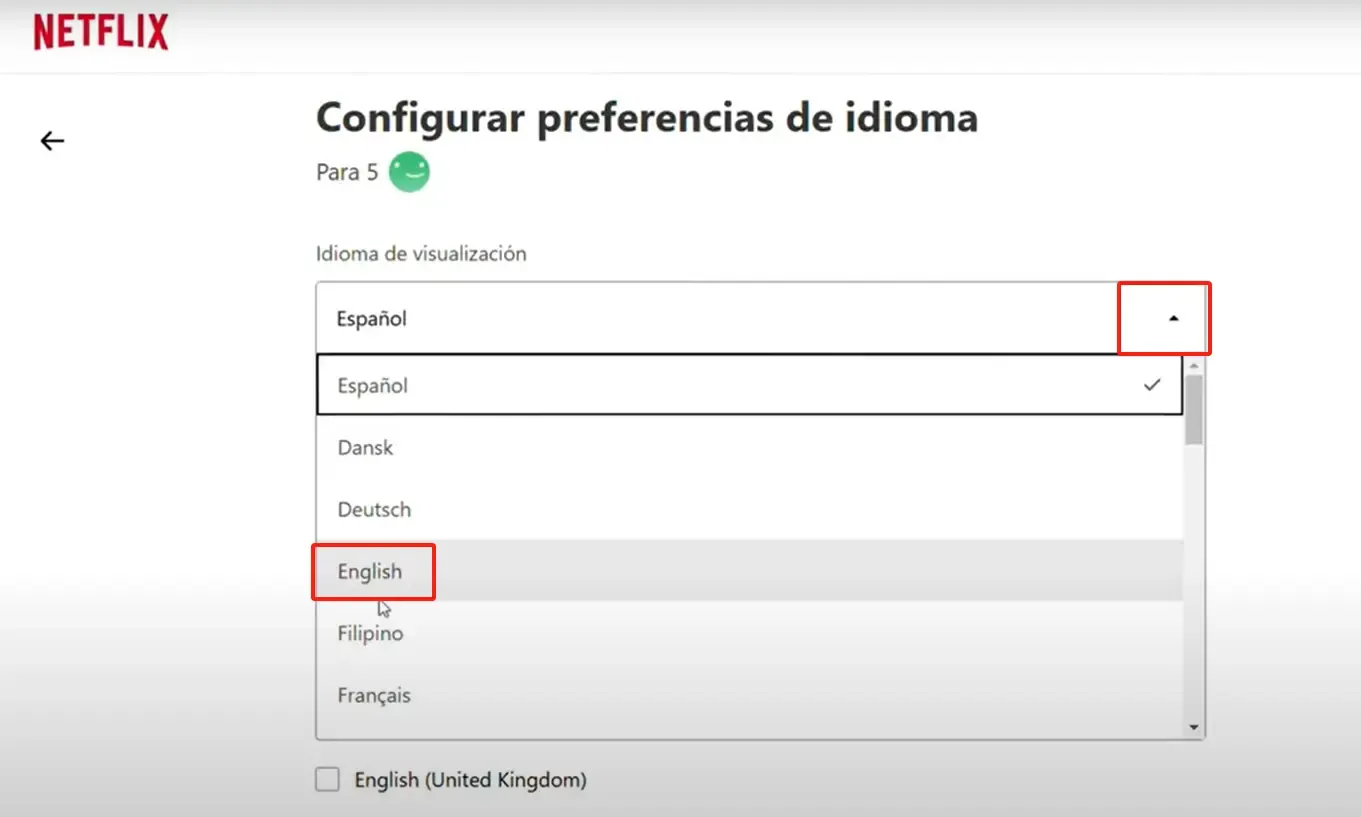 Select your preferred language from the list, then save. This screenshot shows the Spanish interface.
2. Change it in the mobile app
- Open the Netflix app and tap “My Netflix” in the bottom-right corner.
- Tap the profile name at the top, then tap “Manage Profiles.”
- Select your own profile, then go to “Display Language.”
- Choose a language. Your selection is usually saved automatically.
On a TV, go to the profile selection screen, select the edit icon for your profile, then choose “Language.”
Frequently asked questions
- The interface hasn’t changed after saving: Sign out of Netflix, then sign back in. Or switch to another profile, then switch back to your own.
- I only want to change the audio or subtitles for one title: Those options are in the playback menu and are separate from the interface display language setting here.
- Don’t change the language for someone else’s profile. If you’re asked for the account password or email verification during setup and can’t complete it, contact customer support. Don’t change account-level security settings.
When to contact customer support
If you still can’t save the change after updating only your own profile, submit a support ticket and include your order number and a screenshot of the settings page. Don’t send your password or verification code.